Troubleshooting
Google Fi eSIM Activation Failed: Troubleshooting QR Codes, Provisioning Errors, and Pixel vs iPhone Differences
A comprehensive guide to troubleshooting Google Fi eSIM activation failures, focusing on QR code issues, provisioning errors, and the differences between Pixel and iPhone devices.
- Updated
- 2023-10-15
- Reading time
- 12 min
TL;DR
Troubleshoot Google Fi eSIM activation by resetting eSIM profiles, ensuring device unlock, and understanding platform-specific steps for Pixel and iPhone.
- Ensure your device is compatible and unlocked before attempting eSIM activation.
- Pixel devices offer a more streamlined eSIM activation process compared to iPhones.
- QR code scanning is required for iPhone eSIM activation but not for Pixel devices.
Understanding Device Compatibility and Unlock Status
Before attempting eSIM activation, verify that your device is compatible with Google Fi and is unlocked. Compatibility can be checked on the Google Fi device compatibility page. Ensure your device meets the minimum OS requirements: Android 11+ for Pixel and iOS 13+ for iPhone, although iPhone 14+ is recommended for full eSIM functionality.
Checking Device Unlock Status
Devices locked to previous carriers will fail Google Fi eSIM activation. Contact your previous carrier to confirm unlock status. For more details on unlocking, see our guide on MVNO credit check and no-contract plans.
Pixel vs iPhone: Activation Process Differences
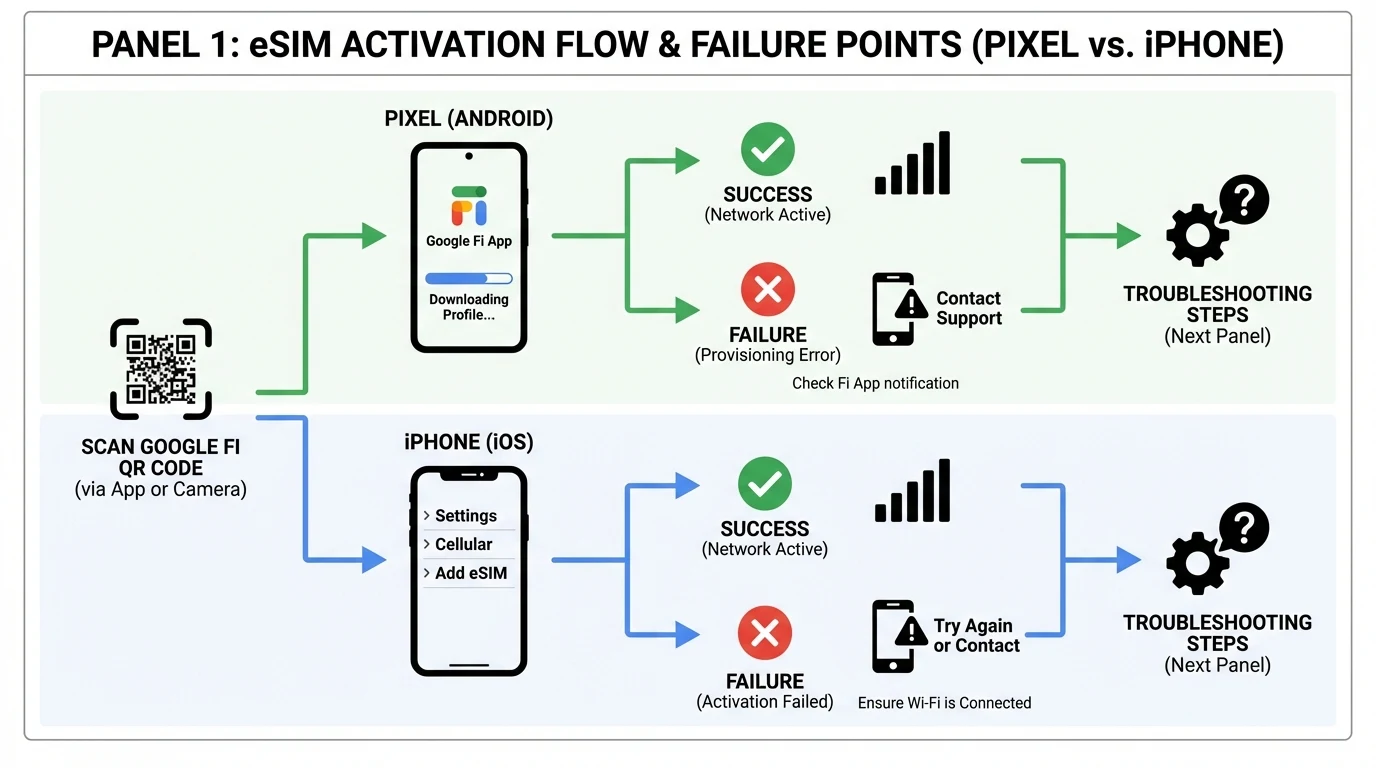
Pixel Devices
Pixel devices offer a streamlined eSIM activation process due to native integration with Google Fi:
- Preloaded Google Fi App: Unlocked Pixels come with the Google Fi app pre-installed, simplifying the activation process.
- No QR Code Needed: Activation is app-driven, eliminating the need for QR code scanning.
- Steps: Connect to Wi-Fi, open the Google Fi app, and follow the in-app instructions to download and activate the eSIM.
iPhone Devices
iPhones require manual steps for eSIM activation, including QR code scanning:
- QR Code Requirement: iPhones need to scan a QR code from fi.google.com under Settings > Cellular > Add eSIM.
- Steps: Download the Google Fi app, generate a QR code, and scan it using your iPhone's camera.
| Aspect | Pixel (Android) | iPhone (iOS) |
|---|---|---|
| Min OS | Android 11+ | iOS 13+; iPhone 14+ recommended |
| App Integration | Preloaded on unlocked Pixels | Download required |
| Setup Method | App-driven (no QR for Pixels) | QR scan via Settings |
| Model Start | Pixel 2+ | iPhone 14+ recommended; XR+ eSIM |
| Common Errors | eSIM transfer skips | Provisioning/scan fails |
For more on dual SIM setups, see our guide on best MVNO dual SIM Verizon work Google Fi personal.
Troubleshooting Common Activation Issues
QR Code Scanning Failures
QR code scanning issues are common with iPhones. Ensure your camera lens is clean, the QR code is not cropped, and the screen brightness is adequate. If problems persist, manually enter the SM-DP+ address and activation code provided by Google Fi.
Provisioning Errors
Provisioning errors can occur due to outdated software or network issues. Ensure your device is connected to a stable Wi-Fi network and that all software is up to date. If errors persist, consider resetting your network settings.
Resetting Network Settings
For persistent provisioning errors, resetting network settings can help. On Android, go to Settings > System > Reset options. On iPhone, navigate to Settings > General > Transfer or Reset iPhone > Reset > Reset Network Settings.
For more troubleshooting tips, refer to our guide on Google Fi speed test slow on 5G.
FAQ
What should I do if my device is locked?
Contact your previous carrier to request an unlock. Ensure your account is in good standing and that the device is eligible for unlocking.
Can I use a physical SIM if eSIM activation fails?
Yes, if eSIM activation fails, you can request a physical SIM card from Google Fi.
How do I escalate issues to Google Fi support?
If troubleshooting steps fail, contact Google Fi support through the app or website for further assistance.
Disclaimer
This guide is intended for informational purposes only. Always verify device compatibility and unlock status through official channels. For the most accurate and up-to-date information, consult Google Fi support and your device manufacturer.
Visual summary