Mobile Connectivity
Why Google Fi Speed Tests Show 'Slow' Despite 5G Signal
Understand why Google Fi speed tests may show 'Slow' speeds even with a 5G signal, focusing on throttling, network congestion, and testing methodologies.
- Updated
- 2023-10-15
- Reading time
- 12 min
TL;DR
Google Fi speed tests may show 'Slow' due to data throttling, network congestion, or testing discrepancies, even when a 5G icon is displayed.
- Data throttling occurs after exceeding high-speed data limits.
- Network congestion can reduce speeds during peak times.
- The 5G icon indicates network type, not actual speed.
Understanding Data Throttling on Google Fi
Google Fi may throttle your data speeds to 256 kbps after you exceed your plan's high-speed data allowance. This throttling applies regardless of your proximity to a 5G tower or the strength of your signal. For example, on the Flexible Plan, speeds slow after 15 GB of data usage, while the Simply Unlimited and Unlimited Plus plans have higher thresholds. You can opt out of throttling by paying an additional fee per GB, which you can verify on fi.google.com.
Network Congestion and Its Impact on 5G Speeds
Network congestion is another reason why your speed test might show "Slow" despite a 5G icon. During peak times, such as weekday evenings, the bandwidth available at cell towers is divided among many users, which can significantly reduce speeds. This is particularly true for Google Fi users on T-Mobile's network, where 5G towers can become "oversold" in high-demand areas.
5G Icon vs. Actual Speed Test Results
The 5G icon on your phone indicates that you are connected to a 5G-capable network, but it does not guarantee high speeds. Factors such as low-band 5G, network congestion, and fallback to LTE can result in slower speeds than expected. It's important to understand that the icon reflects network type, not performance.
Speed Test Methodology and Limitations
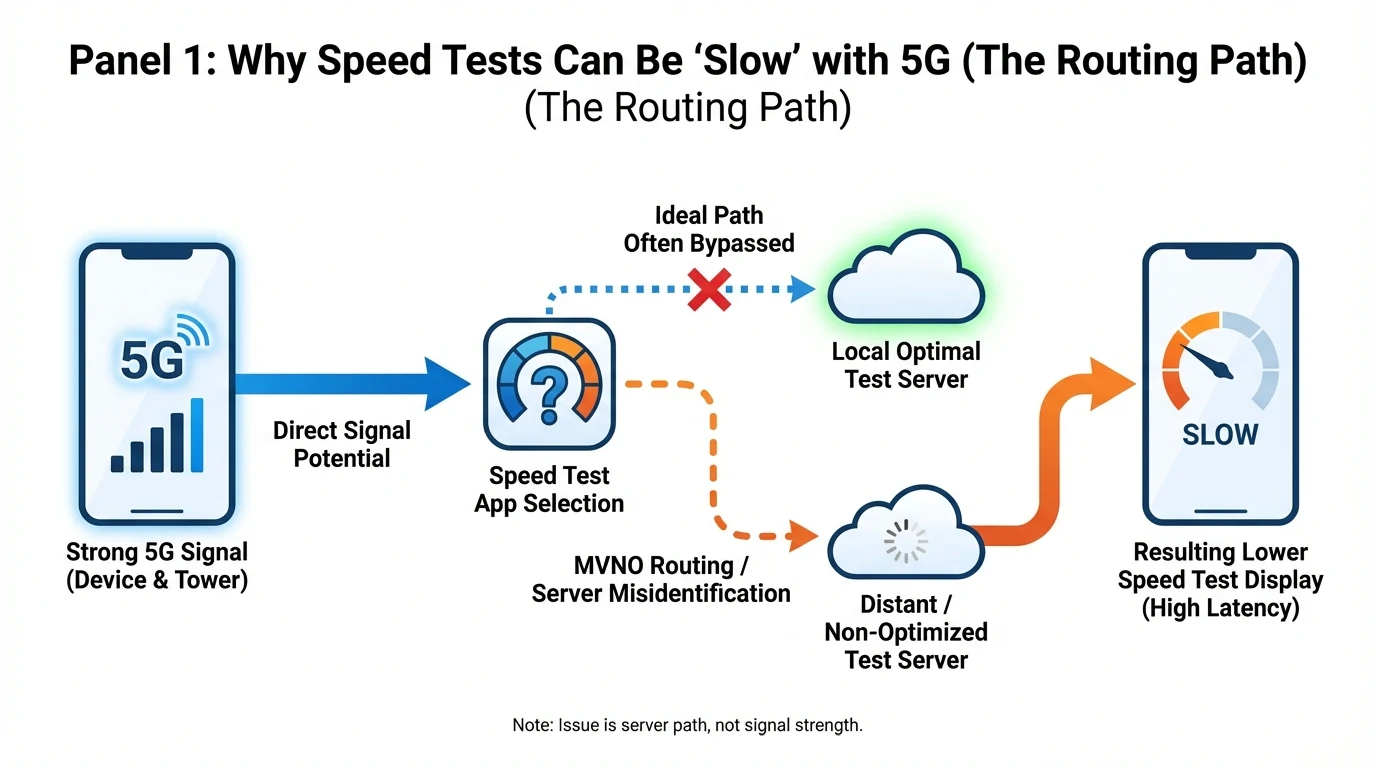
Speed tests like Ookla's measure real-time throughput, which can differ from what the 5G icon suggests. These tests consider factors such as server distance and network congestion, which can affect the results. For more accurate testing, consider running tests during off-peak hours and ensuring your device is set to prioritize 5G networks.
Practical Troubleshooting Steps
- Check Data Usage: Use the Google Fi app to monitor your data usage and see if you've exceeded your high-speed data limit.
- Test at Different Times: Run speed tests during off-peak hours to see if congestion is affecting your speeds.
- Optimize Device Settings: Ensure your phone is set to prioritize 5G networks and disable any data-saving features that might limit speed.
- Verify Network Coverage: Use the Google Fi Coverage Map to check for network issues in your area.
Comparison of Google Fi Plans
| Plan Type | High-Speed Data Limit | Throttling Speed |
|---|---|---|
| Flexible Plan | 15 GB | 256 kbps |
| Simply Unlimited | Higher than Flexible | 256 kbps |
| Unlimited Plus | Highest | 256 kbps |
Disclaimer
This article is intended for informational purposes only. For specific plan details and the latest updates, please verify on fi.google.com or consult with Google Fi support.
Visual summary
FAQ
Short answers; details are in the article above.
- The 5G icon indicates network type, not speed. Factors like throttling and congestion can affect actual performance.
- Try testing during off-peak hours, ensuring your device settings prioritize 5G, and checking for any data usage limits.