Troubleshooting
Visible No Service, Slow Data, or eSIM Not Working: Troubleshooting Steps for US Customers in 2026
Comprehensive troubleshooting guide for Visible customers facing no service, slow data, or eSIM issues, including device restart, network reset, and coverage checks.
- Updated
- 2026-04-21
- Reading time
- 12 min
TL;DR
Restart your device, check signal strength, and verify eSIM settings to resolve common Visible service issues.
- Restarting your device can resolve temporary glitches and force re-registration with Verizon towers.
- Allow up to 15 minutes for service activation post-restart, especially for eSIM provisioning.
- Check device compatibility using Visible's IMEI checker to prevent connectivity issues.
Initial Device Restart and Basic Checks
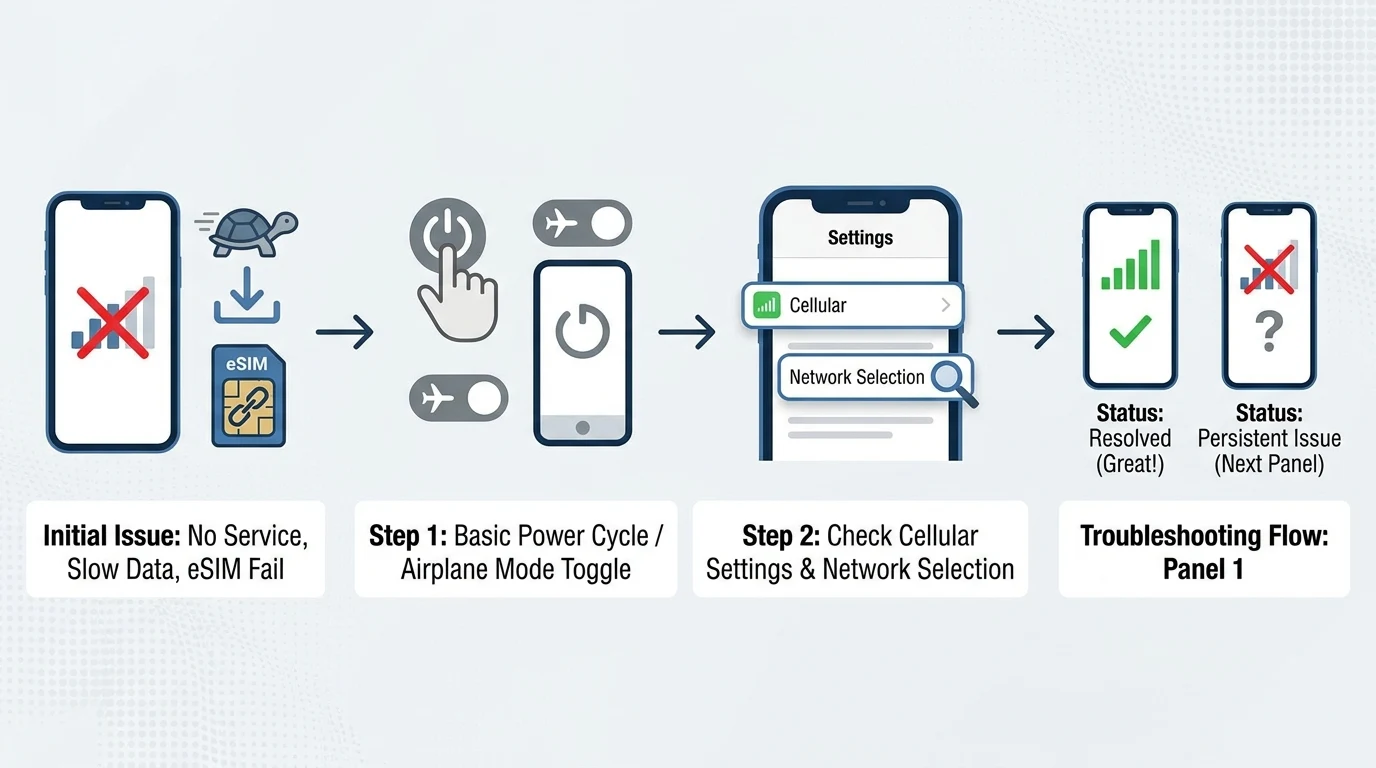
The first step in troubleshooting Visible service issues is to restart your device. This simple action can resolve temporary glitches, clear cached network data, and force your phone to re-register with Verizon towers. After restarting, allow up to 15 minutes for full service restoration, especially if you are using an eSIM.
| Issue | First Step | Expected Wait Time | Success Indicators |
|---|---|---|---|
| No Service | Device restart + Airplane toggle | Up to 15 min | Signal bars appear; calls/data work |
| Slow Data | Restart + signal check | 1–5 min | Data speeds >1Mbps; no "1x" fallback |
| eSIM Not Working | Restart + eSIM re-scan | Up to 15 min | "Visible" carrier shows in settings |
Verify Device and SIM/eSIM Compatibility
Ensure your device is compatible with Visible's network by using their IMEI checker. This step is crucial as not all unlocked phones support Verizon's network bands, which can lead to connectivity failures.
Check Signal Strength and Coverage
Signal strength can be a significant factor in service quality. Check the signal bars on your phone and use the Visible app's diagnostic tools to assess your connection. If you are in an area with poor coverage, consider moving to a location with better reception.
eSIM Specific Troubleshooting
For eSIM users, ensure that your device supports eSIM functionality and that the eSIM profile is correctly installed. If you encounter issues, try redownloading the eSIM profile and updating your carrier settings.
APN Settings Configuration
Correct APN settings are essential for maintaining a stable connection. Ensure that your APN is set to "VSBLINTERNET" or "vzwinternet" and that all other settings match Visible's recommendations.
Network Reset and Airplane Mode Toggle
Performing a network reset can clear corrupted configurations and resolve persistent connectivity issues. Additionally, toggling airplane mode can refresh your network connection and resolve temporary no service issues.
Related Guides
For more information on MVNOs and plan comparisons, check out our guides on Visible Plus vs. Core Unlimited 2026 and Visible vs. Xfinity Mobile: Verizon MVNO.
FAQ
What should I do if my eSIM is not working?
Ensure your device supports eSIM and that the profile is correctly installed. Restart your device and check for carrier updates.
How can I improve my data speeds on Visible?
Check your signal strength and restart your device. Verify your APN settings and consider moving to an area with better coverage.
Disclaimer
This guide provides general troubleshooting steps for Visible service issues. For specific problems or persistent issues, please contact Visible support directly through their help page or app chat. Always verify compatibility and settings on the official Visible website.
Visual summary