Setup
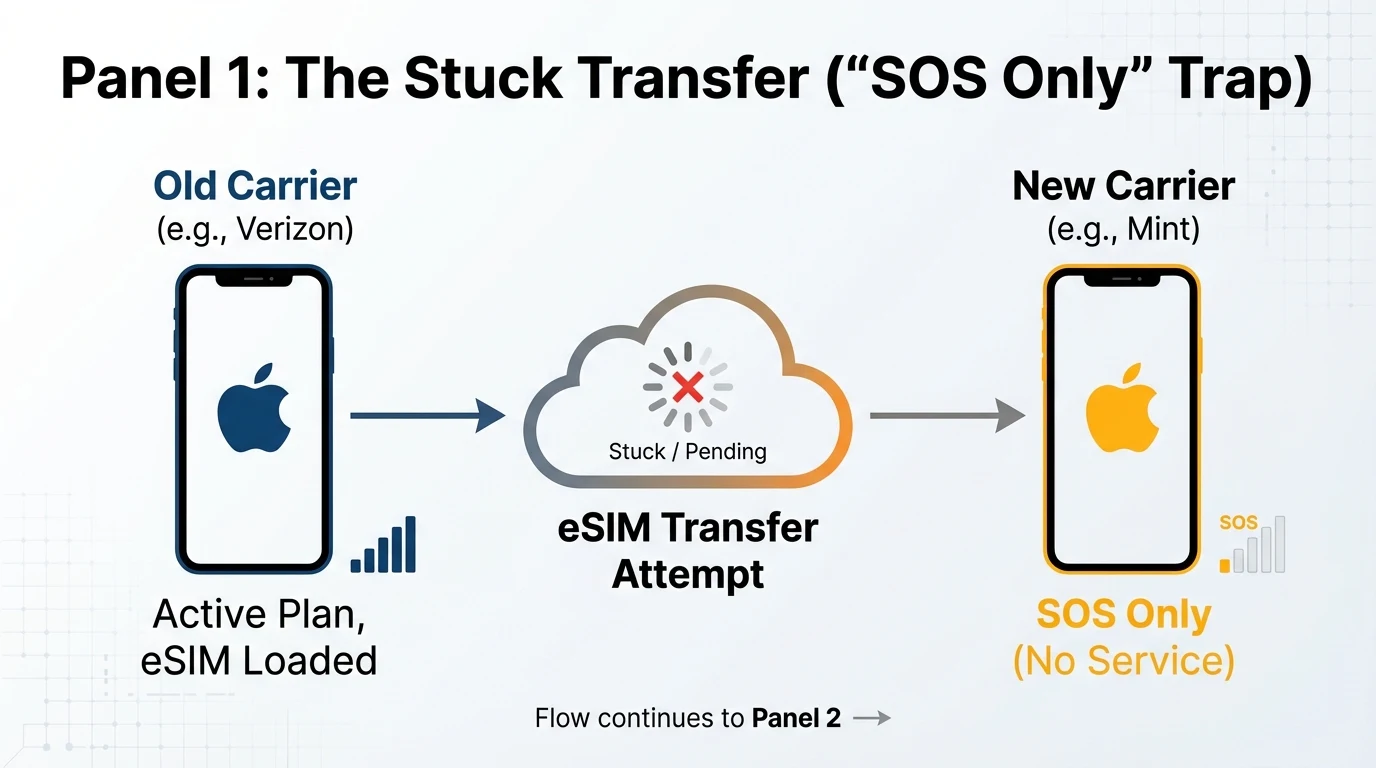
iPhone eSIM Transfer Stuck: Moving from Verizon to Mint Without Extended SOS Only
Step-by-step recovery guide for resolving eSIM transfer issues when switching from Verizon to Mint Mobile, focusing on carrier activation delays and support boundaries.
- Updated
- 2023-10-05
- Reading time
- 12 min
TL;DR
Ensure your iPhone is unlocked, verify carrier settings, and follow step-by-step troubleshooting to resolve eSIM transfer issues from Verizon to Mint Mobile.
- Verify your iPhone is unlocked before attempting eSIM transfer.
- Follow Apple's troubleshooting steps for eSIM activation failures.
- Understand the role of carrier locks in eSIM activation delays.
- Contact Verizon and Mint support if issues persist after troubleshooting.
Understanding Carrier Locks
Before attempting to transfer your eSIM from Verizon to Mint Mobile, it's crucial to ensure your iPhone is unlocked. A carrier lock prevents your device from registering on a new network. To check if your iPhone is unlocked, navigate to Settings > General > About and look for Carrier Lock. If it reads "No SIM Restrictions", your device is unlocked and ready for any carrier, including Mint Mobile.
If your device is locked, contact Verizon to request an unlock. Verizon typically unlocks devices automatically after 60 days of active service, provided the account is in good standing and the device is not reported as lost or stolen. If automatic unlocking does not occur, you may need to request a manual unlock.
Troubleshooting eSIM Activation
If your eSIM activation fails, follow these Apple-recommended steps:
- Toggle Airplane Mode: This refreshes network connections without data loss. Go to Settings and toggle Airplane Mode on and off.
- Verify Cellular Plan: Ensure the new Mint number appears in Settings > Cellular. If listed but inactive, delete the stuck eSIM and re-add it using the Mint Mobile app or a QR code.
- Restart Your Device: Power off your iPhone and turn it back on. For iPhone 13 and newer, hold the volume and side buttons until the slider appears.
- Update Carrier Settings: In Settings > General > About, tap the carrier version number if an update prompt appears.
If these steps do not resolve the issue, contact Mint Mobile or Verizon support with details such as error messages, phone number, account PIN, and IMEI/EID from Settings > General > About.
Verizon Unlock Eligibility & Timeline
Verizon is required by law to unlock phones after 60 days of active service, provided the device is in good standing and not reported as lost or stolen. If your device remains locked beyond this period, contact Verizon for assistance. Mint Mobile also offers automatic unlock after 60 days of consecutive service, but this applies only after successful activation, which requires the device to be unlocked first.
Mint eSIM Installation Process
To activate your Mint Mobile eSIM, download the Mint Mobile app and follow the in-app instructions. Ensure your iPhone is connected to Wi-Fi and that you have your Verizon account number, billing ZIP, and Number Transfer PIN ready. The app will guide you through the activation process, which typically completes within 24 hours.
| Factor | Detail |
|---|---|
| Verizon unlock timeline | 60 days of active service (by law) |
| Mint Mobile unlock timeline | 60 days of consecutive service |
| Minimum iPhone model for eSIM | iPhone XR, XS, or newer |
| Lock check location | Settings > General > About > Carrier Lock |
| Unlock confirmation message | "No SIM Restrictions" |
Disclaimer
This guide is intended for informational purposes only. Verify all details with official carrier sources and Apple's support documentation. For specific pricing and plan details, visit fi.google.com or the relevant carrier's website.
Visual summary
FAQ
Short answers; details are in the article above.
- Contact Verizon to request an unlock if your device is eligible. Ensure your account is in good standing and the device is not reported as lost or stolen.
- Check your iPhone model in Settings > General > About. iPhone XR, XS, and newer models support eSIM.